Today I’d like to share with all of you a wonderful little program that makes sharing information online even easier. Oh yeah, it’s a free program too. This helpful tool is a program called Jing, which you can download for free at jingproject.com.
What exactly does it do, you ask? Jing is basically an improved version of the “printscreen” button found on PC keyboards. Whereas the printscreen function copies an image of your entire screen onto your clipboard that you can paste into a document somewhere, Jing does much more. It lets you select the portion of your screen that you want to capture, and it allows you to choose if you want to save the image onto your computer, copy it to your clipboard, or create a link to a .PNG file that you can email, share, IM, whatever to your friends.
But, before you’ve done that, Jing also allows you to mark-up your image by circling part of it, drawing an arrow to highlight a certain phrase, even writing a little caption. For example, say that you’re writing a how-to-use-Wordpress guide for your mother, who lives in another state. Instead of having to call her and try to explain to her where on the screen she needs to look, you can just make a handy dandy little graphic like this one:
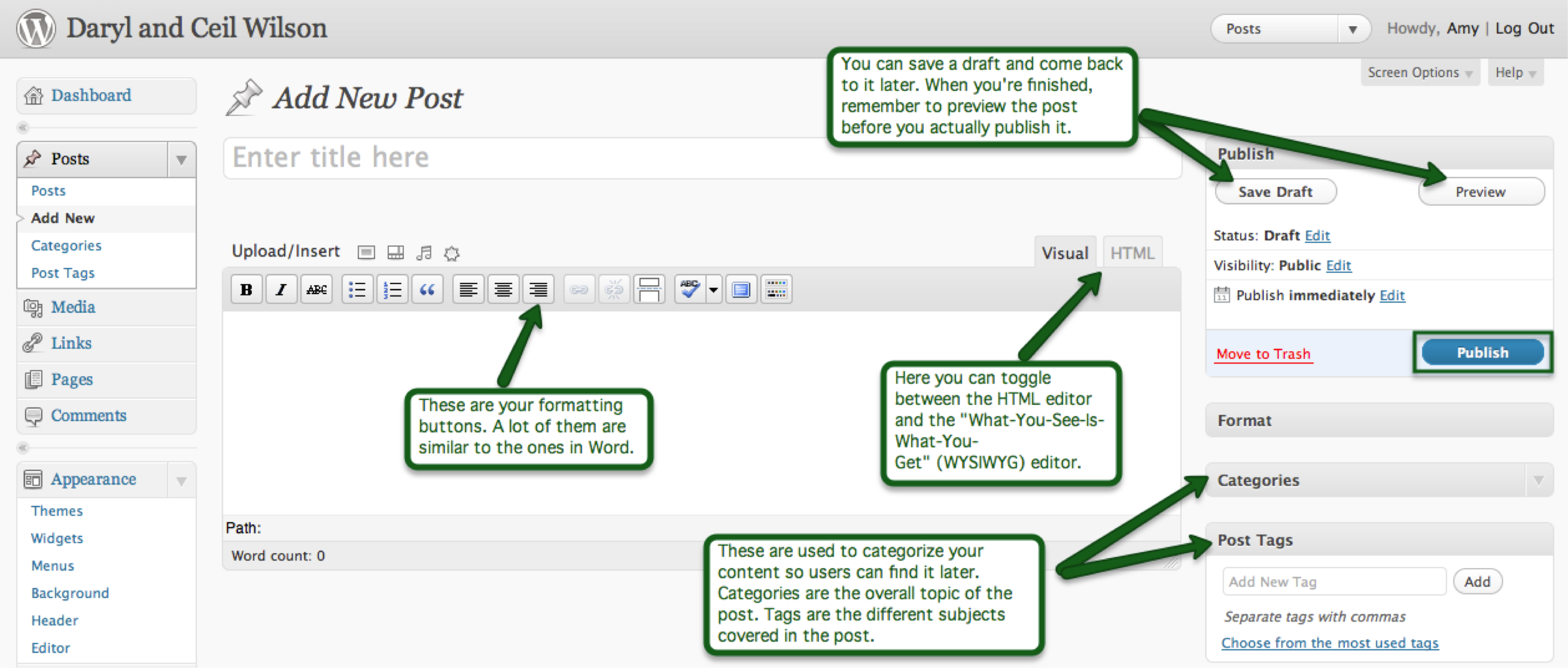
If a picture or series of pictures won’t provide sufficient explanatory power, then you can always record a video and demonstrate how it’s done. Your video will be stored for free on screencast.com’s servers, and you can then email the link, share it, post it on your website, whatever. This part of Jing is a bit more limited. Your video can’t be longer than five minutes, you only get 2 GB of online storage, and you can only upload the video to Screencast.com. But hey, it’s free. What more can you expect?
 Amy E Wilson | Digital Marketing | Paid Media, CRO & Lifecycle
Leave a comment